.jpg)

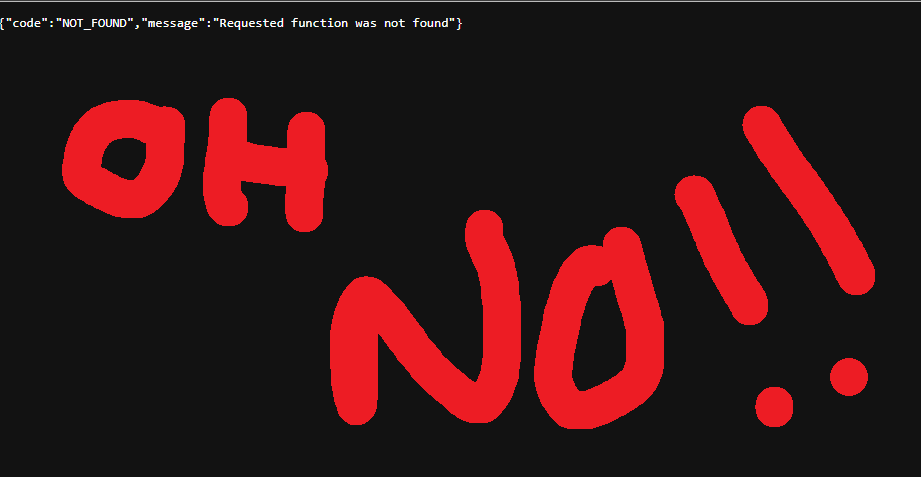
The Patch Tuesday update released on January 13, 2026 (KB5074109), has introduced a significant connectivity issue for organizations utilizing Cloud PCs. Specifically, users updating to build versions 26200.7623 and 26100.7623 are reporting authentication errors and failed connection attempts shortly after the update is applied. Microsoft is tracking this service degradation under incident WP1217671. For IT administrators and systems engineers managing virtual desktop infrastructure, immediate intervention is required to restore service and prevent widespread downtime.
Immediate Remediation Steps
If you are currently unable to connect to a Cloud PC or are experiencing instability following the recent update, the primary solution involves removing the problematic Rollup Fix. This must be done via the command line, likely through a troubleshooting session or a remote management tool that still has access to the endpoint.
To resolve the issue, execute the following DISM command to remove the specific package version associated with the failure:
dism /Online /Remove-Package /PackageName:Package_for_RollupFix~31bf3856ad364e35~amd64~~26100.7623.1.20 /NoRestart
After this command successfully executes, you must proceed with a full system reboot. In most reported cases, this will restore connectivity and allow the Cloud PC to function normally.
Preventing Recurrence: Pause Updates Immediately
Once you have restored access to the machine, or if you are managing machines that have not yet installed the faulty patch, it is critical to pause Windows Updates immediately. Failure to do so may result in the system attempting to reinstall the broken Rollup Fix, leading to a recurrence of the connection issues.
There are two primary methods to achieve this block.
Method 1: Settings Menu (Fastest)
For individual users or manual intervention, the quickest method is through the Windows Settings interface:
Navigate to Settings > Windows Update.
Locate the option to Pause updates.
Select Pause for 1 week.
Method 2: Verification of Policy Blocks
If you are managing this via Group Policy or have run a PowerShell script to pause updates across your fleet, it is vital to verify that the pause is active. You can check the registry to ensure the correct keys are present.
Run the following PowerShell command to verify the block:
Get-ItemProperty HKLM:\SOFTWARE\Policies\Microsoft\Windows\WindowsUpdate
Ensure that the output reflects your pause configuration or that the specific registry keys intended to block the update are present and active.
Managing Infrastructure at Scale
Dealing with bad patches on cloud infrastructure highlights the importance of robust digital strategy and automated systems management. When manual intervention is required for hundreds or thousands of virtual desktops, efficiency drops and operational costs rise.
At FlowDevs, we specialize in building scalable cloud infrastructure and implementing intelligent automation. Whether it is managing complex update workflows via Power Automate or creating custom monitoring applications, we help businesses maintain resilience against technical disruptions. If you are looking to streamline your digital systems or require assistance with complex process integrations, visit our bookings page at https://bookings.flowdevs.io to discuss how we can support your technical vision.
The Patch Tuesday update released on January 13, 2026 (KB5074109), has introduced a significant connectivity issue for organizations utilizing Cloud PCs. Specifically, users updating to build versions 26200.7623 and 26100.7623 are reporting authentication errors and failed connection attempts shortly after the update is applied. Microsoft is tracking this service degradation under incident WP1217671. For IT administrators and systems engineers managing virtual desktop infrastructure, immediate intervention is required to restore service and prevent widespread downtime.
Immediate Remediation Steps
If you are currently unable to connect to a Cloud PC or are experiencing instability following the recent update, the primary solution involves removing the problematic Rollup Fix. This must be done via the command line, likely through a troubleshooting session or a remote management tool that still has access to the endpoint.
To resolve the issue, execute the following DISM command to remove the specific package version associated with the failure:
dism /Online /Remove-Package /PackageName:Package_for_RollupFix~31bf3856ad364e35~amd64~~26100.7623.1.20 /NoRestart
After this command successfully executes, you must proceed with a full system reboot. In most reported cases, this will restore connectivity and allow the Cloud PC to function normally.
Preventing Recurrence: Pause Updates Immediately
Once you have restored access to the machine, or if you are managing machines that have not yet installed the faulty patch, it is critical to pause Windows Updates immediately. Failure to do so may result in the system attempting to reinstall the broken Rollup Fix, leading to a recurrence of the connection issues.
There are two primary methods to achieve this block.
Method 1: Settings Menu (Fastest)
For individual users or manual intervention, the quickest method is through the Windows Settings interface:
Navigate to Settings > Windows Update.
Locate the option to Pause updates.
Select Pause for 1 week.
Method 2: Verification of Policy Blocks
If you are managing this via Group Policy or have run a PowerShell script to pause updates across your fleet, it is vital to verify that the pause is active. You can check the registry to ensure the correct keys are present.
Run the following PowerShell command to verify the block:
Get-ItemProperty HKLM:\SOFTWARE\Policies\Microsoft\Windows\WindowsUpdate
Ensure that the output reflects your pause configuration or that the specific registry keys intended to block the update are present and active.
Managing Infrastructure at Scale
Dealing with bad patches on cloud infrastructure highlights the importance of robust digital strategy and automated systems management. When manual intervention is required for hundreds or thousands of virtual desktops, efficiency drops and operational costs rise.
At FlowDevs, we specialize in building scalable cloud infrastructure and implementing intelligent automation. Whether it is managing complex update workflows via Power Automate or creating custom monitoring applications, we help businesses maintain resilience against technical disruptions. If you are looking to streamline your digital systems or require assistance with complex process integrations, visit our bookings page at https://bookings.flowdevs.io to discuss how we can support your technical vision.
Related Blog Posts