.jpg)
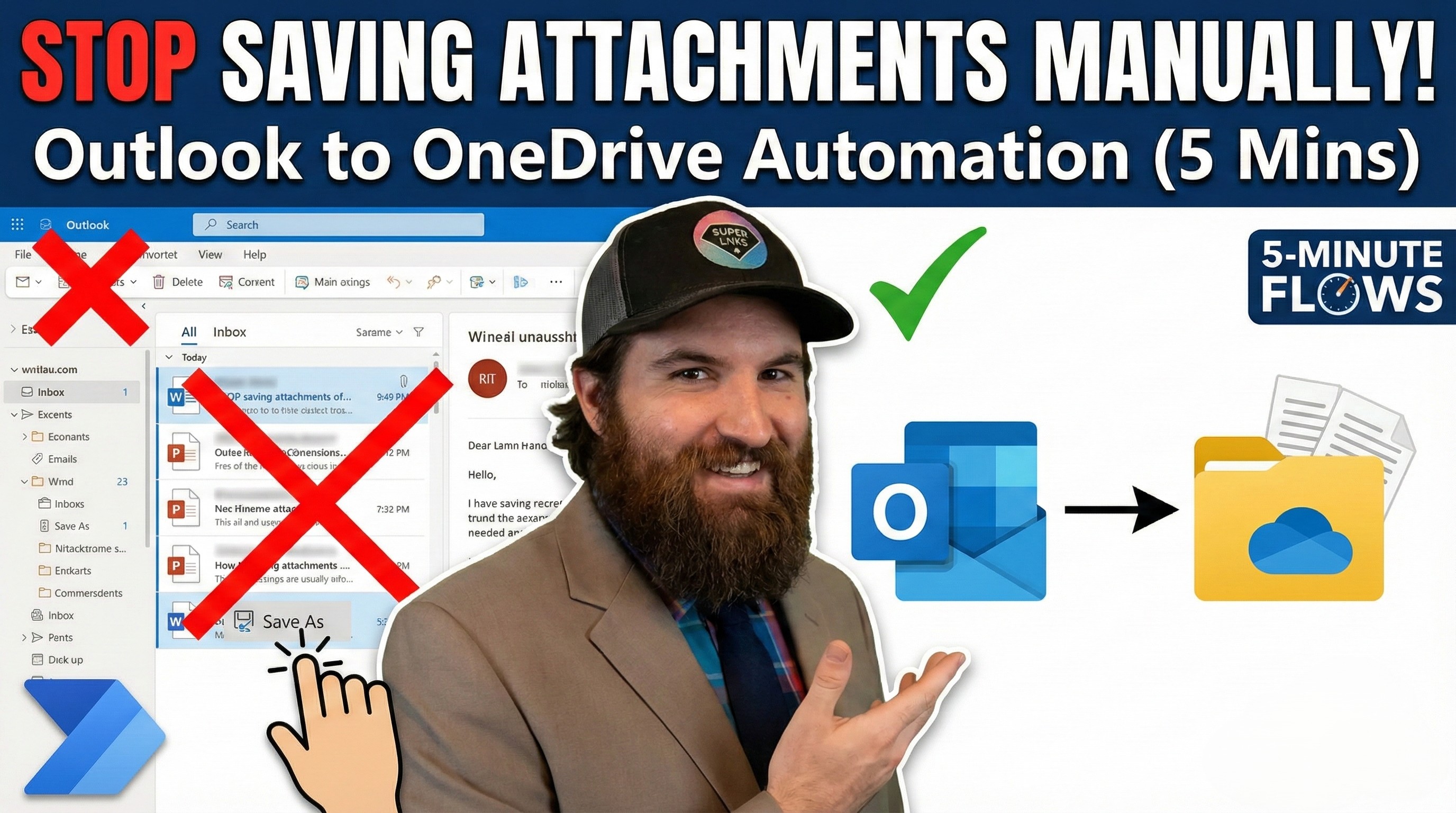
Manually saving email attachments can be a tedious and time-consuming task. But what if you could automate this process and have all your important documents automatically saved to your preferred location?
In this blog post, we'll walk you through a simple 5-minute flow using Microsoft Power Automate to automatically sync your email attachments to a designated folder in OneDrive.
Prerequisites:
A Microsoft account with access to Power Automate and OneDrive.
An email account that you want to monitor for attachments.
Step 1: Create a New Flow
Log in to your Power Automate account.
Click on "My flows" from the left-hand navigation bar.
Click on "+ New flow" and select "Automated cloud flow."
Step 2: Configure the Trigger
In the "Flow name" field, enter a name for your flow, such as "Sync Email Attachments to OneDrive."
In the "Choose your flow's trigger" section, search for and select "When a new email arrives (V3)."
Select the email account you want to monitor.
(Optional) You can further configure the trigger by specifying conditions, such as subject line keywords or specific senders.
Step 3: Add a "Create File" Action
Click on "+ New step" to add a new action.
Search for and select "Create file" from the list of actions.
In the "Folder Path" field, specify the OneDrive folder where you want to save the attachments. You can create a new folder or select an existing one.
In the "File Name" field, click on "Add dynamic content" and select "Attachments Name" from the list. This will ensure that each attachment is saved with its original filename.
In the "File Content" field, click on "Add dynamic content" and select "Attachments Content" from the list. This will save the actual content of the attachment.
Step 4: Save and Test Your Flow
Click on "Save" to save your flow.
Send a test email with an attachment to the monitored email account.
Check your designated OneDrive folder to confirm that the attachment was successfully saved.
Additional Tips:
You can use the "Apply to each" loop to process multiple attachments from a single email.
You can add additional actions to your flow, such as sending a notification or moving the email to a different folder after the attachment has been processed.
You can use Power Automate templates to quickly create common flows.
By following these simple steps, you can easily automate the process of saving email attachments to OneDrive, freeing up your time for more important tasks.
Watch the Video Tutorial:
For a visual walkthrough of this process, check out our YouTube video:
https://www.youtube.com/watch?v=1bww65bSD64&list=PLz9K-aXYVAN2Lv6TvtJzttfmYzLJL3mG5
Book time with us: https://bookings.flowdevs.io
Manually saving email attachments can be a tedious and time-consuming task. But what if you could automate this process and have all your important documents automatically saved to your preferred location?
In this blog post, we'll walk you through a simple 5-minute flow using Microsoft Power Automate to automatically sync your email attachments to a designated folder in OneDrive.
Prerequisites:
A Microsoft account with access to Power Automate and OneDrive.
An email account that you want to monitor for attachments.
Step 1: Create a New Flow
Log in to your Power Automate account.
Click on "My flows" from the left-hand navigation bar.
Click on "+ New flow" and select "Automated cloud flow."
Step 2: Configure the Trigger
In the "Flow name" field, enter a name for your flow, such as "Sync Email Attachments to OneDrive."
In the "Choose your flow's trigger" section, search for and select "When a new email arrives (V3)."
Select the email account you want to monitor.
(Optional) You can further configure the trigger by specifying conditions, such as subject line keywords or specific senders.
Step 3: Add a "Create File" Action
Click on "+ New step" to add a new action.
Search for and select "Create file" from the list of actions.
In the "Folder Path" field, specify the OneDrive folder where you want to save the attachments. You can create a new folder or select an existing one.
In the "File Name" field, click on "Add dynamic content" and select "Attachments Name" from the list. This will ensure that each attachment is saved with its original filename.
In the "File Content" field, click on "Add dynamic content" and select "Attachments Content" from the list. This will save the actual content of the attachment.
Step 4: Save and Test Your Flow
Click on "Save" to save your flow.
Send a test email with an attachment to the monitored email account.
Check your designated OneDrive folder to confirm that the attachment was successfully saved.
Additional Tips:
You can use the "Apply to each" loop to process multiple attachments from a single email.
You can add additional actions to your flow, such as sending a notification or moving the email to a different folder after the attachment has been processed.
You can use Power Automate templates to quickly create common flows.
By following these simple steps, you can easily automate the process of saving email attachments to OneDrive, freeing up your time for more important tasks.
Watch the Video Tutorial:
For a visual walkthrough of this process, check out our YouTube video:
https://www.youtube.com/watch?v=1bww65bSD64&list=PLz9K-aXYVAN2Lv6TvtJzttfmYzLJL3mG5
Book time with us: https://bookings.flowdevs.io
Related Blog Posts

Extracting an email from a Webflow form notification in Power Automate (and cleaning up the extra line breaks)
Microsoft Power Automate vs. Make (Integromat): A User Experience Comparison from Beginner to Pro